
Add the Inspect 365 plugin to Copilot Cowork
Turn on Copilot Cowork with a Copilot Credits spending policy, upload the Inspect 365 plugin file, sign in to Inspect 365, and ask Cowork for a report.
Issue
You want Copilot Cowork to build reports from your Inspect 365 data, such as a tenant overview for a prospect or a devices report for a client. The Inspect 365 plugin isn't in the Microsoft 365 store yet, so you add it to your own tenant from a plugin file we send you.
The plugin holds two things:
A connector to Inspect 365. After you sign in, Cowork can read the tenants your Inspect 365 account can see.
A reports skill with six fact reports: tenant overview; users and groups; devices; Entra apps; installed software; and mailboxes, Teams and SharePoint. Scripts in the skill compute every number from Inspect 365 data, so the same data always gives the same report. The reports carry no Inspect 365 branding, and you can add your own.
You can also ask Cowork for outputs the six reports don't cover, such as a one-page list of Windows devices with their builds. Cowork writes those itself rather than through the report scripts, so check their numbers in Inspect 365 before you send one to a client.
Before you start
A Microsoft 365 Copilot license for each person who uses the plugin (Get started with Copilot Cowork).
Usage-based billing. Cowork is billed per task in Copilot Credits, on top of the license. Someone with the Global Administrator or Billing Administrator role turns it on once for the tenant (step 1). Pay-as-you-go credits bill to an Azure subscription. If your organization has none, the admin center creates one when a Global Administrator sets up billing.
The plugin file from us, named
inspect365-m365-us-<version>.zip. Upload it as it is; don't unzip it.An Inspect 365 account. Cowork signs in to Inspect 365 as you and sees only the tenants your account sees.
Resolution
1. Turn on Cowork for your organization
A Copilot license alone doesn't open Cowork. A person can use Cowork only when at least one spending policy that selects Cowork includes them. If you already see Cowork next to Chat in Microsoft Copilot, skip to step 2.
Sign in to the Microsoft 365 admin center as a Global Administrator or Billing Administrator.
Go to Copilot > Cost management and select Get Started. The Activate the default spending policy for your organization panel opens.
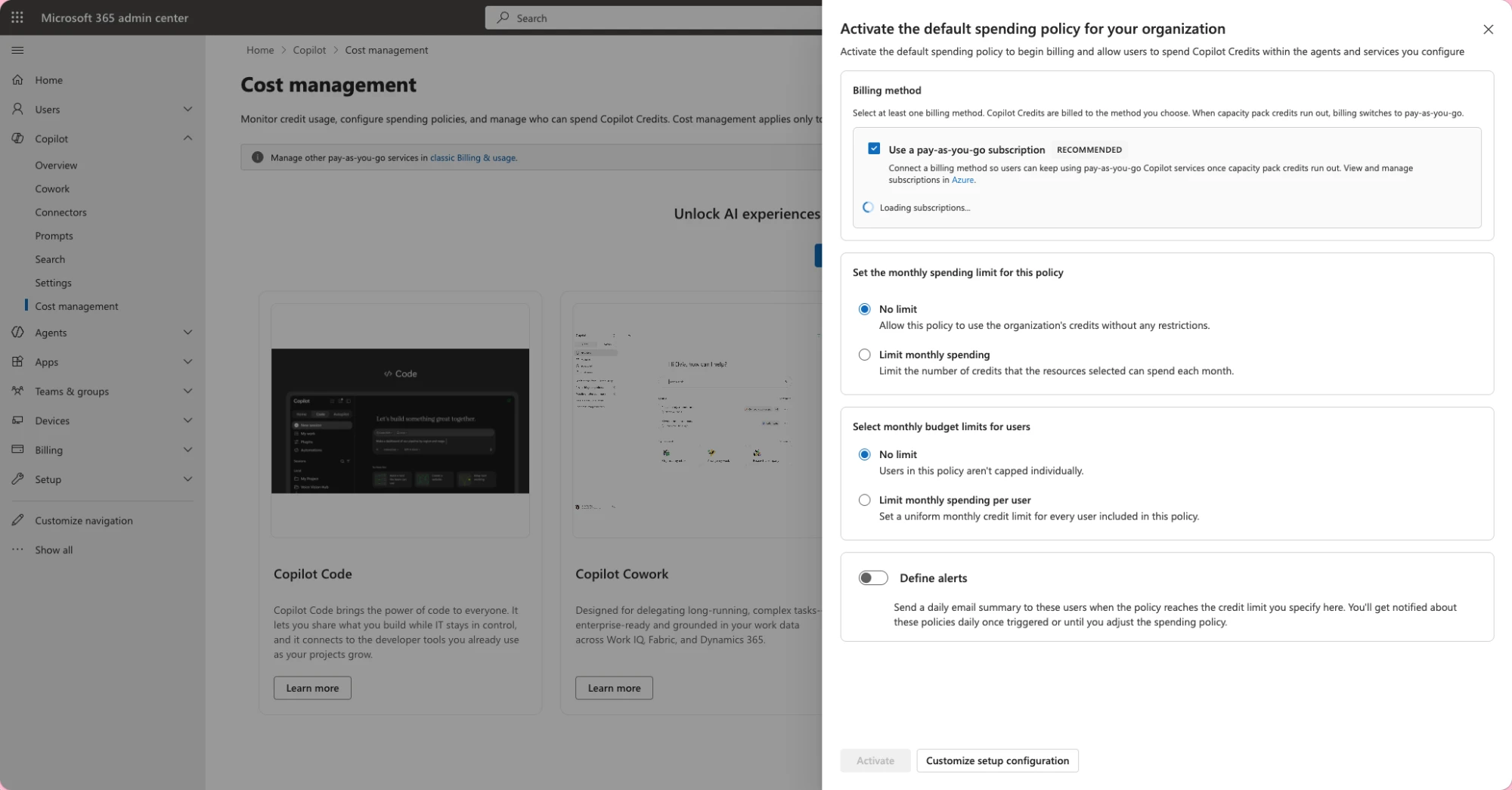
Under Billing method, leave Use a pay-as-you-go subscription selected and wait for your Azure subscriptions to load. Pick the subscription that credits should bill to.
Under Set the monthly spending limit for this policy, choose No limit, or choose Limit monthly spending and enter a credit amount.
Under Select monthly budget limits for users, choose Limit monthly spending per user and enter a credit amount. Microsoft recommends a per-user limit so one person can't use all of the organization's credits.
Optionally turn on Define alerts and add the people who get a daily email once the policy reaches the credit limit you set.
The default policy covers every user in the organization. To give Cowork only to your technicians, select Customize setup configuration and scope the policy to a security group.
Select Activate.
A low credit limit doesn't keep someone out of Cowork. To keep a person out, leave them out of every policy that selects Cowork. To see roughly how many credits a Cowork task has used, type /cost in that task.
2. Add the plugin
Choose one of these. The first needs no admin role.
For yourself and the colleagues you name
Open Microsoft Copilot and select Cowork in the toggle next to Chat.
Select the + button, then Customize, then the Plugins tab.
Select Upload plugin and choose the plugin file.
In the Share dialog, choose Only you, or Specific users in your organization and add your technicians by name or email.
Select Apply. Inspect 365 appears under Installed on the Plugins tab.
For a group or the whole organization (Global Administrator or AI Administrator)
In the Microsoft 365 admin center, go to Agents > Tools > Registry and select Upload.
Upload the plugin file. Check that the components listed are the Inspect 365 connector and the
inspect365-reportsskill, then select Next.Under Scope users, choose All users or Specific users or groups.
Review the configuration and select Install.
The people you choose get the plugin automatically. They still need a Copilot license and a spending policy that selects Cowork.
3. Sign in to Inspect 365
Each person signs in once. An admin can't sign in for them.
In Cowork, ask something that needs Inspect 365, such as
Which tenants can I see in Inspect 365?When Cowork asks you to connect Inspect 365, approve the Inspect 365 consent page, then sign in with the work account you use for Inspect 365.
Cowork lists your tenants. It keeps the sign-in for later conversations.
Inspect 365's tools don't yet tell Cowork which calls only fetch data, so Cowork may ask you to approve each Inspect 365 call. To skip prompts for similar calls in the rest of a conversation, select the arrow next to the approve button and choose Always allow.
4. Build a report
Ask for a report by name and tenant:
Build the Inspect 365 tenant overview report for Contoso.Build the Inspect 365 devices report for Contoso.Build the Inspect 365 users and groups report for Contoso.
To brand the report, give the details in the same request and attach your logo, for example Brand it with our company name, the attached logo and accent color #e0a526. The report can carry a company name, tagline, logo (PNG, JPEG, GIF, WebP or SVG, under 512 KB), header color, accent color and footer line. Cowork uses only what you give it.
Cowork makes the skill's fixed set of Inspect 365 calls, saves each result, and builds report.html. Larger tenants take longer and use more credits, because Cowork saves every page of results. The finished file appears in the side panel, where you can preview it, download it or open it in OneDrive. For a PDF, open report.html in your browser and print it to PDF.
If the build stops, Cowork shows the script's message. Send it to us with the report name.
5. Install a newer version
When we send a new plugin file, upload it the same way. If you shared the plugin from Cowork, open the plugin's detail page and select Re-share so everyone you shared it with gets the new version. Changes on the Inspect 365 side, such as new data, reach you without a new file. Changes to the reports need the new file.
If something doesn't work
Cowork doesn't appear next to Chat: the person needs a Microsoft 365 Copilot license and must be in a spending policy that selects Cowork (step 1).
The plugin shows "This plugin is blocked by your organization's policy": an admin checks which publisher categories users can install from, under Agents > Settings > Agent and plugin access in the Microsoft 365 admin center.
More information
Manage plugins, skills, and MCP servers: Upload plugins or skills
Manage plugins, skills, and MCP servers: Manage plugin availability at the organization level
Manage plugins for Copilot Cowork: Manage connector authentication
Revision history
Revision | Date | Change |
|---|---|---|
1 | 2026-10-07 | First version. |
Was this helpful?